
How to Get an Outlook Email Header for Phishing or Spoofing Investigation
When you receive a suspicious, phishing, spoofed, or scam email, sending your IT provider a screenshot may not be enough for a proper investigation.
The full email header contains technical information that can help your IT administrator identify where the email came from, which mail servers handled it, and whether the sender’s email address may have been spoofed.
This guide shows you how to retrieve the full email header from Microsoft Outlook.
Why Does Your IT Provider Need the Email Header?
An email may appear to come from someone you know — or even from your own email address — but the visible From address alone does not prove who actually sent it.
The full email header contains additional technical information such as:
- Sending mail server
- Email delivery path
- Return-Path
- SPF authentication result
- DKIM authentication result
- DMARC authentication result
- Message ID
- Other information useful for identifying suspicious email activity
These details can help your IT administrator determine whether an email was spoofed, sent through an unauthorized server, or requires further investigation for possible email account compromise.
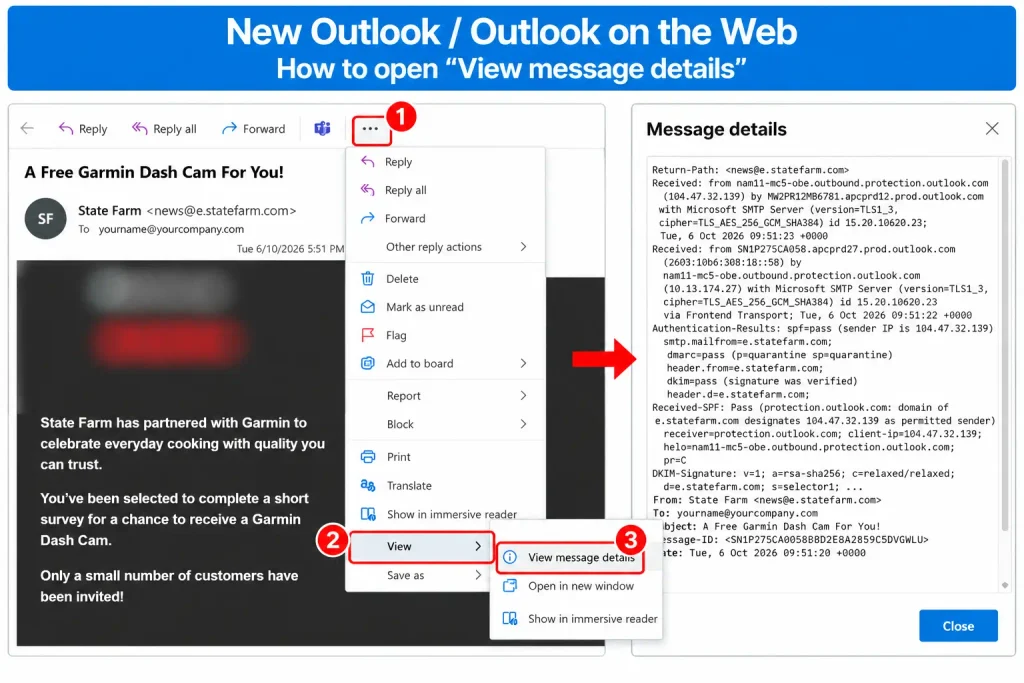
How to Get the Email Header in New Outlook or Outlook on the Web
- Open the suspicious email.
- Click the three dots (…) / More actions near the top of the message.
- Select View.
- Click View message details.
- A window containing the full technical email header will appear.
- Select and copy all the text.
- Open Notepad and paste the copied information.
- Save the file as a .txt file.
- Send the text file to your IT administrator or email service provider for investigation.
For example, you can save the file as:
suspicious-email-header-2026-10-06.txtHow to Get the Email Header in Classic Outlook for Windows
- Double-click the suspicious email to open it in a separate window.
- Click File.
- Click Properties.
- Look for the Internet headers section at the bottom of the window.
- Click inside the Internet headers box.
- Press Ctrl + A to select everything.
- Press Ctrl + C to copy it.
- Open Notepad and paste the copied header.
- Save it as a .txt file.
- Send the file to your IT administrator for investigation.
Important: Do Not Just Forward the Suspicious Email
If your IT administrator asks for the full email header, avoid simply forwarding the suspicious email using the normal Forward button.
A normally forwarded email may not preserve all of the original delivery information needed for technical investigation.
Instead, provide the original full message header whenever possible.
Your IT administrator may examine information such as:
Received:
Return-Path:
Authentication-Results:
Received-SPF:
DKIM-Signature:
From:
Reply-To:
Message-ID:
This information can help determine whether the email was genuinely sent through an authorized mail server or whether the visible sender address was spoofed.
What Should You Do If You Receive a Suspicious Email?
While waiting for your IT administrator to investigate the message:
- Do not click links inside the suspicious email.
- Do not open unexpected attachments.
- Do not reply to the sender.
- Do not provide passwords, verification codes, or personal information.
- Do not make payment if the email demands money, cryptocurrency, or ransom.
- Keep the original email until the investigation is completed.
Quick Guide
New Outlook / Outlook on the Web
Open Email → More Actions (…) → View → View Message Details → Copy All → Save as TXT → Send to IT
Classic Outlook
Open Email → File → Properties → Internet Headers → Copy All → Save as TXT → Send to IT
Why Email Header Investigation Matters
A suspicious email displaying your company’s domain name does not automatically mean that your email account or server has been hacked.
Email sender addresses can sometimes be spoofed, making a message appear to originate from a legitimate company address.
Before concluding that an email account has been compromised, your IT administrator should examine the available evidence, including the full email header, email authentication results, mail server logs, and account login activity where appropriate.
This evidence-based approach helps distinguish between a simple spoofing attempt and a genuine email security incident that requires immediate action.
Need Help Investigating a Suspicious Business Email?
If your company receives suspicious emails, phishing messages, or emails that appear to have been sent from your own domain, avoid making assumptions based only on the sender name shown in Outlook.
Preserve the original email and provide the full email header to your IT administrator or email service provider for investigation.
Entertop can assist businesses with website, hosting, domain, DNS, and business email infrastructure troubleshooting and security configuration.
Contact Entertop if you need assistance investigating suspicious email activity related to your business domain or hosting environment.
Reference: Microsoft Support — View internet message headers in Outlook.