
How to Enable Email Formatting (HTML) in cPanel Roundcube Webmail
When composing an email in Roundcube Webmail, you may want to use bold text, different font sizes, colours, bullet points, or hyperlinks to make your message look more professional.
If these formatting options are missing when composing an email, you may be using Plain Text mode instead of HTML mode.
Follow this simple guide to enable HTML email formatting in Roundcube Webmail.
Step 1: Log In to Roundcube Webmail
- Open your web browser.
- Visit your webmail login page, usually
https://webmail.yourdomain.com.my. - Enter your email address and password.
- Open Roundcube Webmail.
Note: Replace yourdomain.com with your actual domain name.
Step 2: Open Roundcube Settings
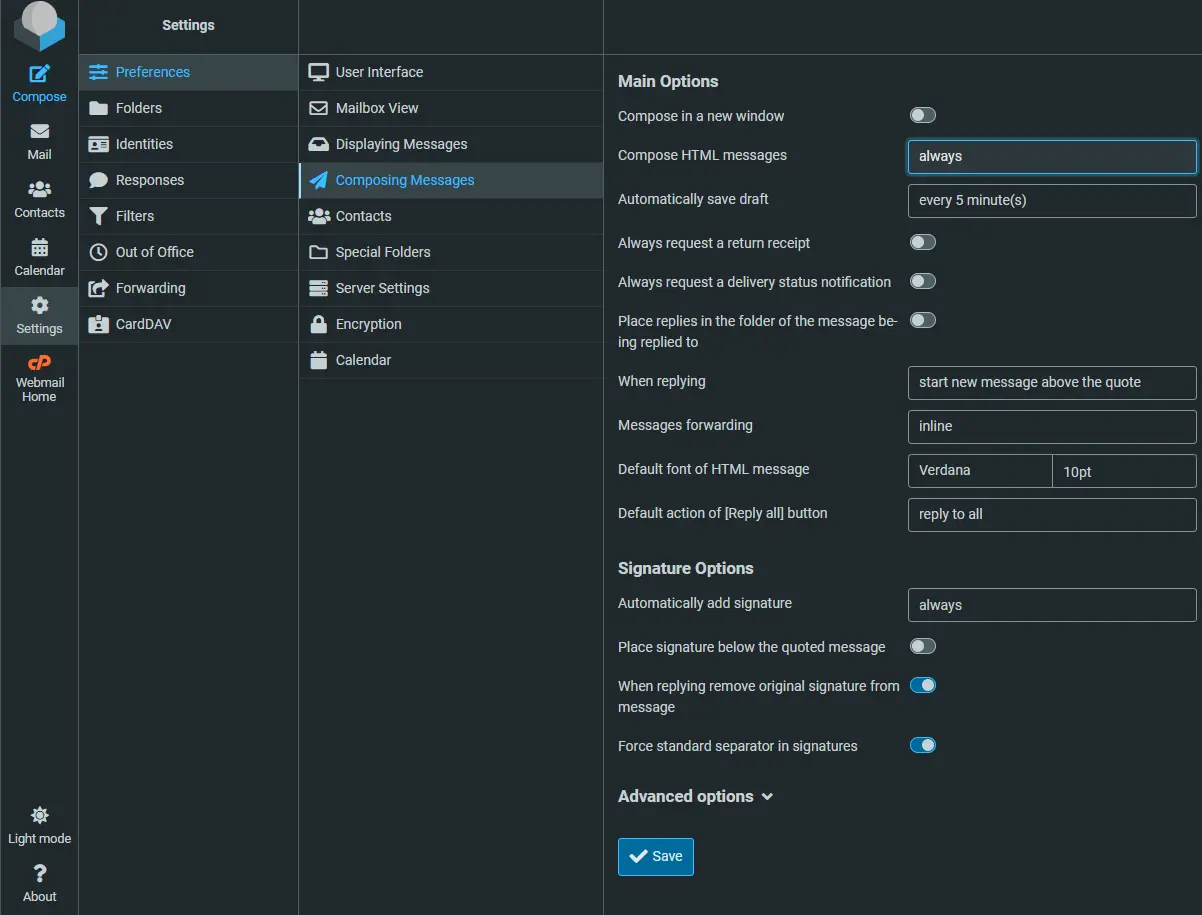
- Click Settings on the left-hand menu.
- Select Preferences.
- Click Composing Messages.
Step 3: Enable HTML Email Formatting
Under Main Options, find the setting called Compose HTML messages.
Change the setting to:
Always
Alternatively, you can select Always, except when replying to plain text if you want HTML formatting for new emails while keeping plain-text formatting when replying to plain-text messages.
Click Save to apply your changes.
Step 4: Check Your Email Display Settings
For emails received from other people, you can also enable HTML display.
- Go to Settings → Preferences → Displaying Messages.
- Find Display HTML.
- Make sure the option is enabled.
- Click Save.
This setting allows Roundcube to display HTML-formatted emails.
Important: You do not need to enable remote images or external resources to use HTML formatting. For better privacy and security, you can leave Allow remote resources (images, styles) set to Never.
Step 5: Compose a New Email
- Click Compose.
- The message editor should now display formatting tools.
- You can format your email using options such as:
- Bold, italic, and underline
- Font type, size, and colour
- Numbered and bullet lists
- Hyperlinks
- Text alignment
Your Roundcube Webmail is now ready to compose HTML-formatted emails.
What If the Formatting Toolbar Is Still Missing?
If you cannot see the formatting toolbar:
- Check that Compose HTML messages is set to Always.
- Click Save.
- Refresh Roundcube Webmail.
- Open a new email using Compose.
- Check whether the message editor is in HTML mode rather than Plain Text mode.
If the problem continues, contact your hosting provider for further assistance.
Need Help with cPanel Webmail?
If you are experiencing issues with Roundcube Webmail, email formatting, or your cPanel email hosting, please contact Webcom IT Support.