
Mozilla Thunderbird has an Offline Mode similar to Microsoft Outlook
You’re looking for a workflow in Mozilla Thunderbird similar to Microsoft Outlook’s “offline mode” where you can review emails in the Outbox before they are actually sent. Thunderbird has similar functionality, though the terminology might be slightly different.
Mozilla Thunderbird has an Offline Mode similar to Microsoft Outlook. Here’s how you can use it on Windows:
✅ Steps to Enable Offline Mode in Thunderbird
- Manually Switch to Offline Mode:
- Go to the “File” menu.
- Hover over “Offline”.
- Click “Work Offline”.
- You’ll see a small red “X” on the connection icon in the bottom-left corner of Thunderbird once it’s offline.
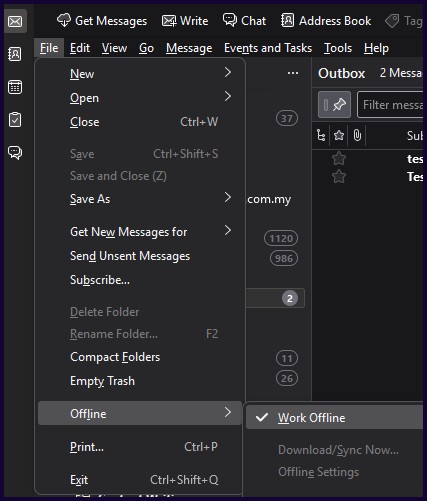
2. Check Your Outbox:
- While in offline mode, go to your Outbox under “Local Folders”.
- Open and verify the email content (edit if needed).
- This works similarly to Outlook’s offline draft-checking process.
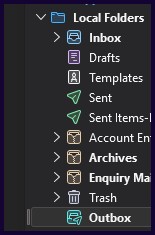
3. Send When Ready:
- Once you’re happy with the content, go back to:
- File → Offline → Work Offline (uncheck it to go back online),
- Then press “Send Unsent Messages” from the File > Send Unsent Messages menu.
⚙️ Optional: Automatic Prompt Before Going Online
To make this behavior more automatic:
- Go to Tools > Account Settings > Offline & Disk Space.
- Check “Ask me when I go online” — this will prompt you before reconnecting, letting you confirm you’re ready to send.
🧠 Quick Tip:
You can also compose and hit Send while offline — the message stays in Outbox until you go online and manually trigger the send. Great for double-checking before emails leave the building!