
First-Time Login Guide for Microsoft 365 (Business Basic)
✅ Before You Begin
Make sure you have:
- Your Microsoft 365 business email (e.g.,
[email protected]) - Your temporary password (sent by your IT admin or Microsoft)
🔐 Step-by-Step Instructions
- Open a Browser
- Use Chrome, Microsoft Edge, Safari, or Firefox.
2. Go to the Microsoft 365 Sign-in Page
- Enter: https://www.office.com
- Click Sign in (top right corner).
3. Enter Your Business Email
- Type your full Microsoft 365 email.
- Click Next.
4. Enter Temporary Password
- Use the temporary password provided to you.
- Click Sign in.
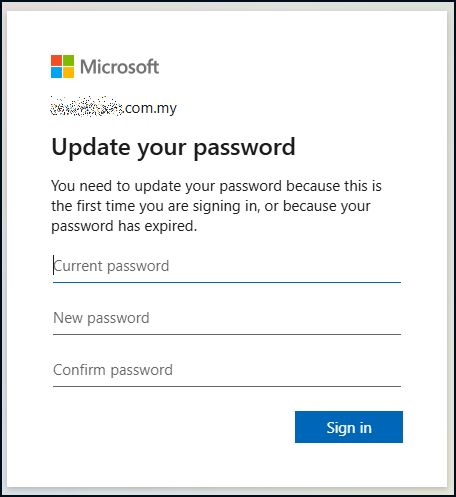
5. Create a New Password
- You’ll be prompted to set a new password.
- Enter your new password twice.
- Click Sign in again.
6. Verify Your Identity
- Set up Multi-Factor Authentication (MFA) if prompted:
- Choose how to receive your verification code (e.g., Authenticator app, SMS, or email).
- Follow the prompts to complete verification.
7. Accept Microsoft 365 Terms
- Read and accept the license terms (first-time users only).
8. Access Your Dashboard
- You’ll be directed to the Office 365 homepage.
- Apps like Outlook, Teams, Word, and Excel will be available.
🛠 Tips if You Get Stuck
- Wrong password? Use “Forgot password?” to reset.
- MFA setup issue? Click “I want to set up a different method” during verification.
- No access? Contact your Microsoft 365 admin to confirm your account is active.