
Increase Server Timeout
Go to File option in Outlook, select it and then select Account settings>Managed Profile
Select the account and
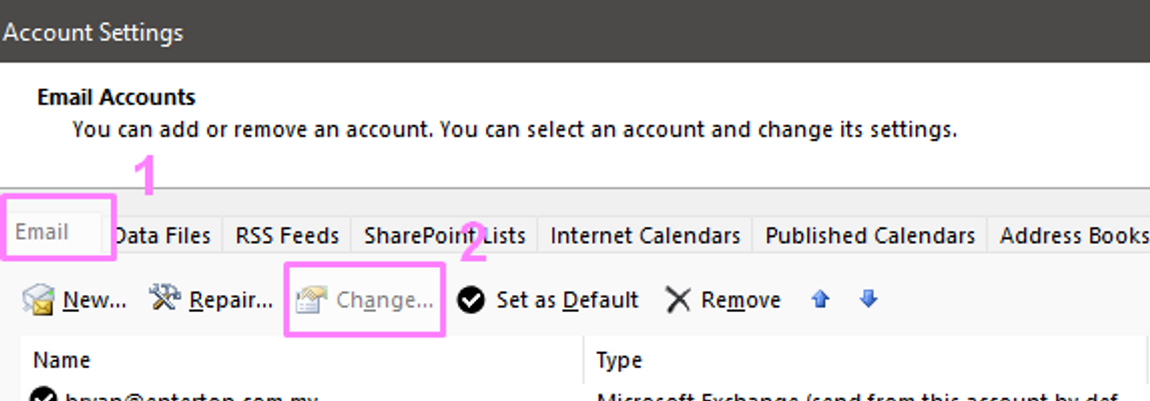
Double-click an email account’s name in the list to edit its settings. click on Change option. Then click on More Settings option.
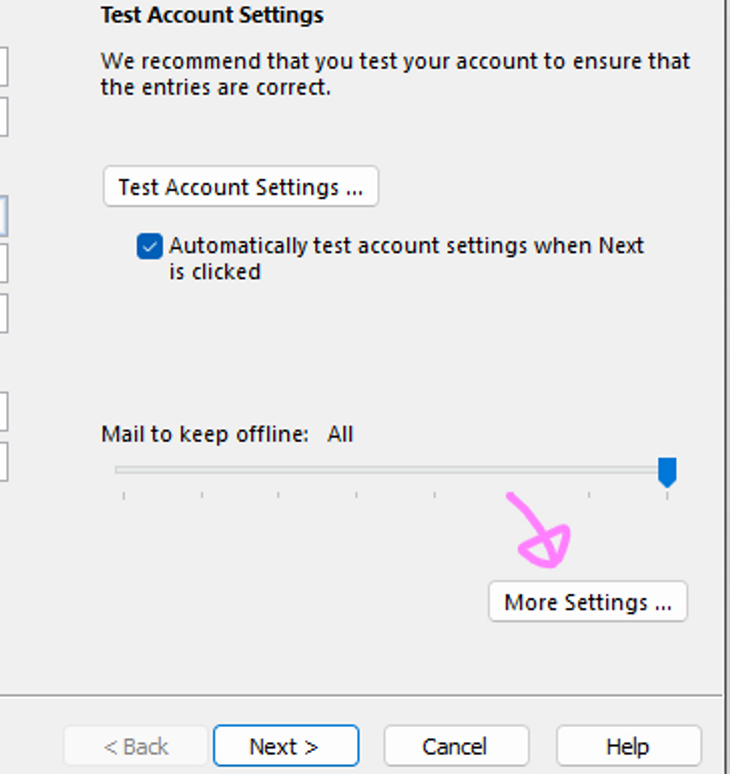
Click more settings then Click the “Advanced” tab on the settings window, then locate the Server Timeouts section.
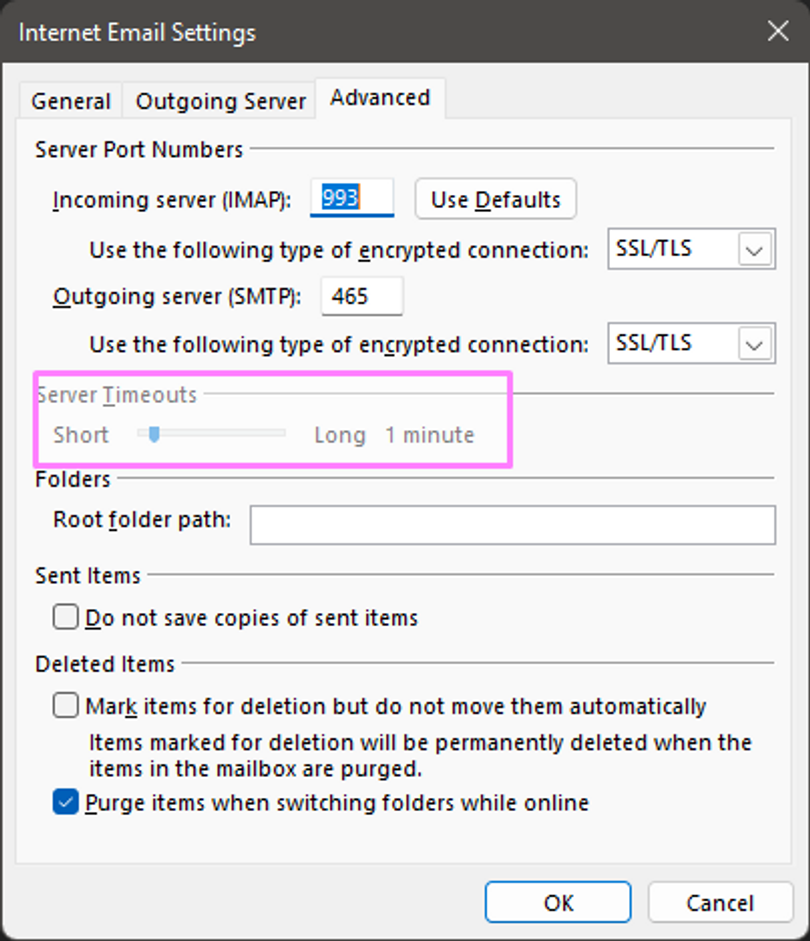
Left click on the slide-point and drag to the far right side (10 minutes). By changing the setting, you increase the timeout session for preventing your connection from terminated.