
Step-by-Step Guide to Reset Your Email Password in cPanel Roundcube Webmail
The purpose of a step-by-step guide to reset an email password in cPanel Roundcube Webmail is to provide clear and detailed instructions for users who need to change or reset the password for their email accounts. Here are some common reasons why such a guide might be necessary:
- Security Measures:
- Regularly changing passwords is a recommended security practice. This guide helps users update their email passwords to enhance the security of their accounts.
- Forgotten Passwords:
- Users may forget their email passwords, and a step-by-step guide assists them in the process of resetting and creating a new password.
- Employee On boarding:
- In a business or organizational context, when new employees join, they may need to set up or change their email passwords. A guide simplifies this process for them.
Resetting an email password in cPanel Roundcube Webmail involves a few steps. Please note that the exact steps might vary slightly depending on the hosting provider and cPanel version. Here is a general step-by-step guide:
- Access cPanel:
- Open your web browser and go to your cPanel login page. This is often something like
https://yourdomain.com/cpanel.
- Open your web browser and go to your cPanel login page. This is often something like
- Log in to cPanel:
- Enter your cPanel username and password to log in.
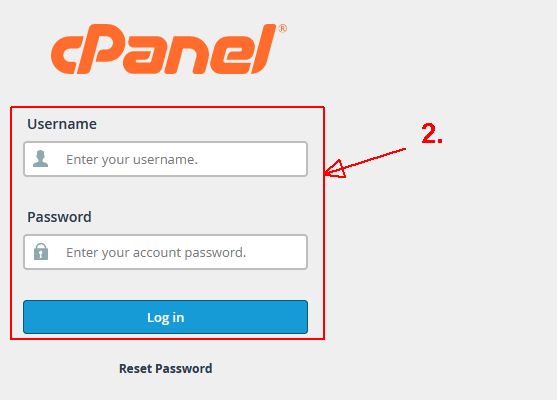
- Enter your cPanel username and password to log in.
- Navigate to Email Accounts:
- Look for the “Email” section in cPanel and click on “Email Accounts.”
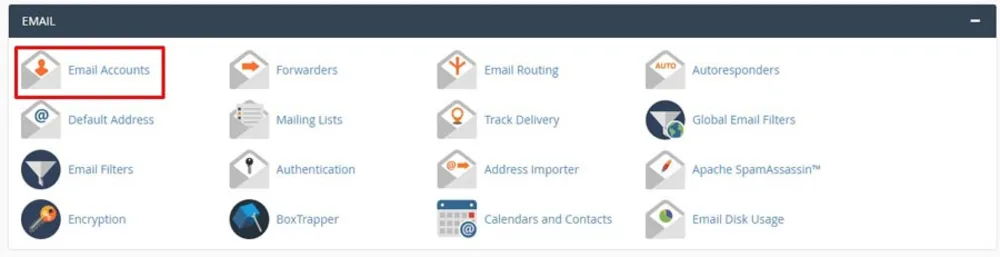
- Look for the “Email” section in cPanel and click on “Email Accounts.”
- Select the Email Account:
- Find the email account for which you want to reset the password.
- Change Password:
- Locate the option to change the password for the selected email account. This might be labeled as “Change Password” or “Password & Security.”

- Locate the option to change the password for the selected email account. This might be labeled as “Change Password” or “Password & Security.”
- Enter New Password:
- Enter a strong and secure new password. It’s advisable to use a mix of uppercase and lowercase letters, numbers, and special characters.
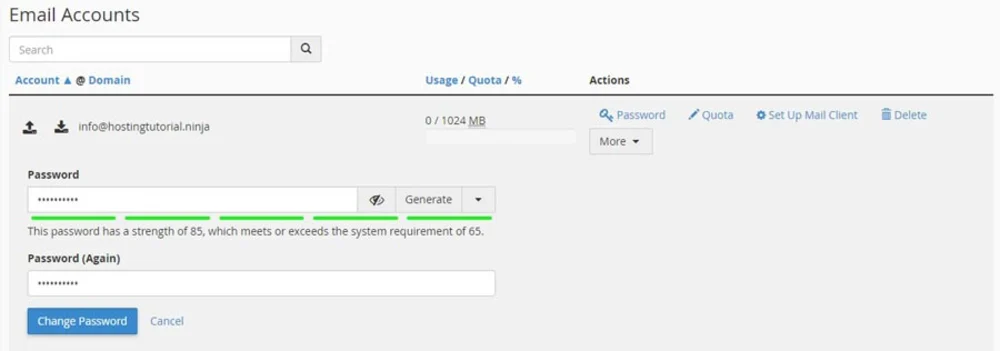
- Enter a strong and secure new password. It’s advisable to use a mix of uppercase and lowercase letters, numbers, and special characters.
- Confirm New Password:
- Confirm the new password by entering it again.
- Save Changes:
- Save the changes. This might involve clicking a “Change Password” or “Save” button.
- Check the confirmation that the password has been changed
- You should ensure you see the confirmation stating that the password has been changed.
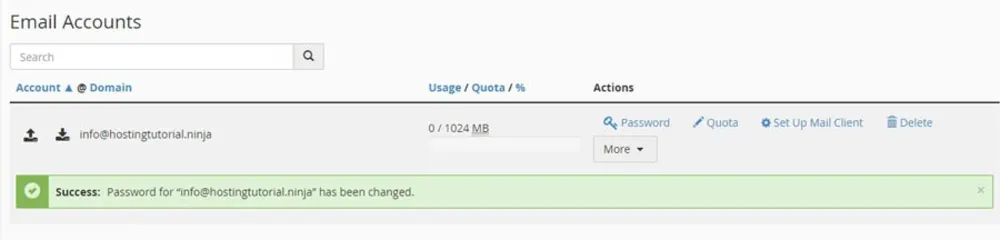
- You should ensure you see the confirmation stating that the password has been changed.